Technological Innovation
How to Build a Simple Home Backup System for Your Important Files
Photos from family trips, personal videos, and work documents pile up fast as our lives go digital. Building a straightforward home‑backup setup lowers your risk of losing precious data when computers, phones or storage hardware fail.
Thankfully, home backup does not need to be complex or costly. With the right storage hardware and a simple routine, anyone can build a workable system tailored to their needs.
This guide walks you through building a practical home‑backup workflow and picking suitable storage for different data types.
Why Do You Need a Home Backup System?
Most people keep their files on one main device.
Photos may stay on a phone. Work files may stay on a laptop. Videos may stay on a desktop computer.
This is convenient, but it creates a risk. If that device has a problem, the files may become difficult to recover.
A backup creates another copy.
It can be useful for:
-
Family photos
-
Personal videos
-
Work documents
-
School files
-
Creative projects
-
Other files that are hard to replace
The first step is simple:identify the files you do not want to lose.
Step 1: Know What You Need to Back Up
Not every file needs the same type of storage.
Start by looking at your current data.
Documents
Documents usually do not take up much space. An external SSD can be a convenient choice for files you use often.
Photos and Videos
Photos and videos need more space. High-resolution images and 4K videos can fill a drive quickly.
For larger collections, a higher-capacity HDD may be more practical.
Long-Term Files
Old photos, completed projects, and archived documents may not be opened often.
These files can be stored on a separate backup drive.
Step 2: Choose SSD or HDD
The right storage depends on how you use your files.
SSD for Speed and Portability
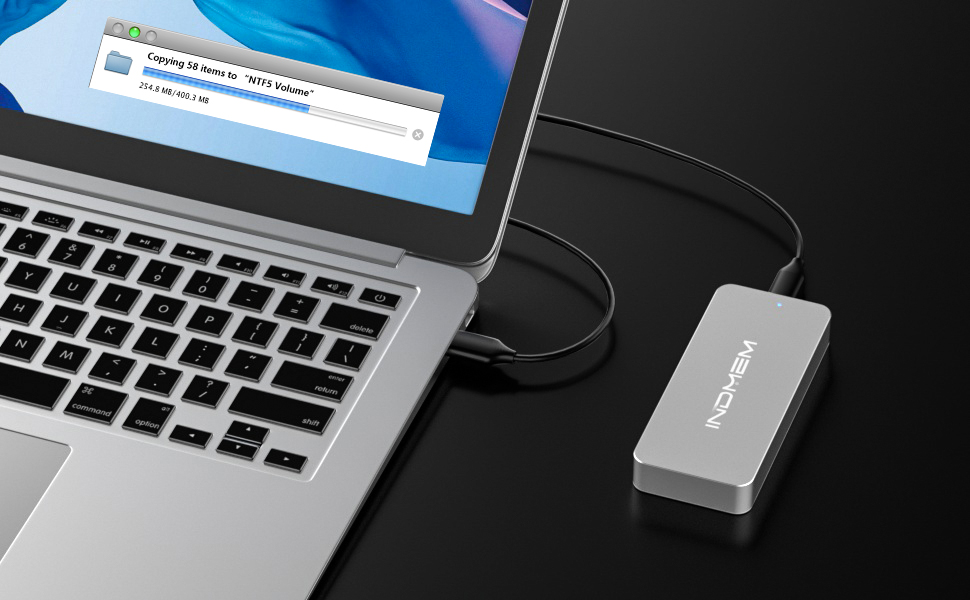
SSDs are fast and compact. They are a good fit for files you access often.
An M.2 SSD can also be used as portable storage with a compatible enclosure.
Good for:
-
Daily work files
-
Photo editing
-
Video projects
-
Large file transfers
-
Portable storage

HDD for Large Data Collections
HDDs are useful when you need more storage space.
They can work well for large photo libraries, video files, and older projects.
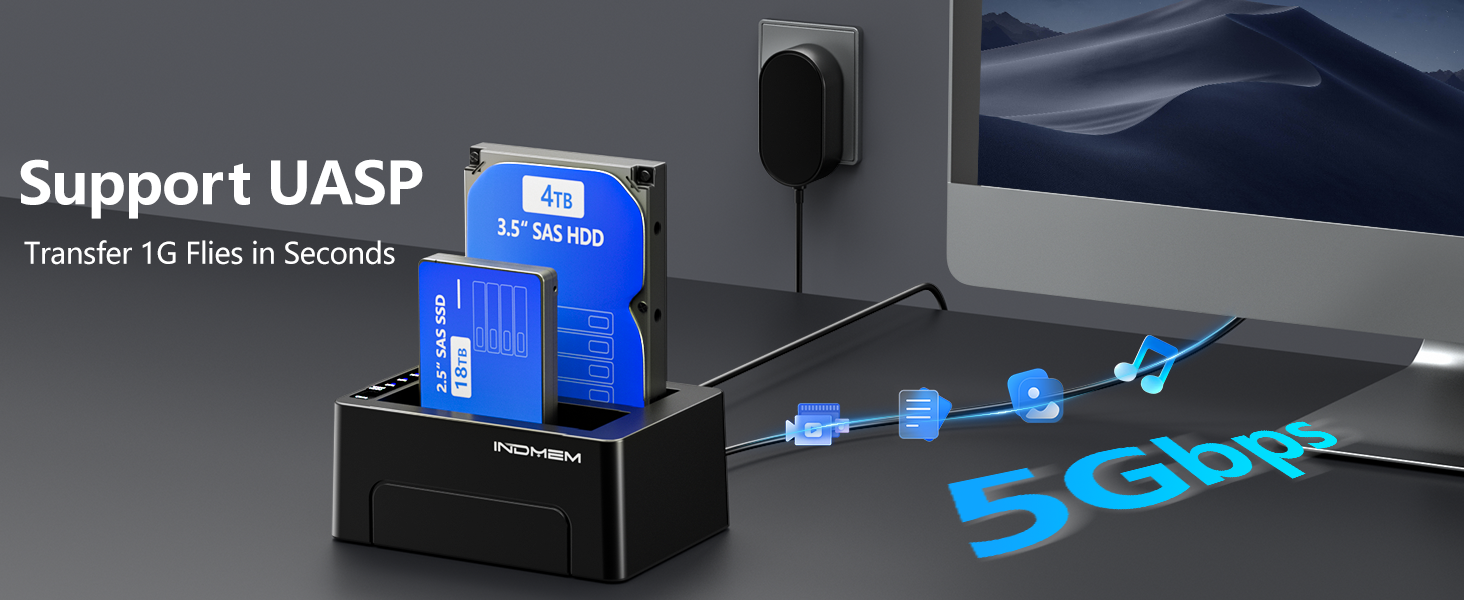
An HDD enclosure or docking station can also make an internal drive easier to connect to a computer.
Good for:
-
Large photo libraries
-
Video archives
-
Computer backups
-
Long-term storage
-
Large file collections
 https://www.amazon.com/INDMEM-SAS-Adapter-Enclosure-Converter/dp/B0GTCWVVJ9?ref_=ast_sto_dp&th=1
Step 3: Keep More Than One Copy
One copy is not a backup strategy.
If your only backup drive fails, you may lose the backup as well.
For important files, keep at least two copies.
A simple setup could look like this:
Computer or Smartphone
↓
Main Files
↓
External SSD
↓
External HDD
For files that are especially important, you can also keep another copy in a different location.
Step 4: Set a Backup Schedule
A backup system only helps when you use it.
Choose a schedule that fits your habits.
Weekly Backup
A good option for people who create new files every day.
Back up your latest photos, videos, and documents once a week.
Monthly Backup
This may be enough for files that change less often.
You can use it for older photos, documents, and archived projects.
Back Up After Major Events
Some events can create a lot of new data.
For example:
-
A family trip
-
A wedding
-
A large photo shoot
-
A completed work project
-
A video production
Back up these files soon after the event.
Step 5: Keep Your Files Organized
A good folder structure makes backups easier to manage.
For example:
Photos:2026、Travel、Family、Events
Videos:Personal、Projects、Events
Documents:Work、Personal、Projects
Use clear folder names. Add dates when useful.
This makes it easier to find fileslater.
How Much Storage Do You Need?
|
Usage |
Suggested Storage Approach |
|
Documents and everyday files |
External SSD |
|
Photos and personal videos |
SSD or HDD |
|
Large video collections |
Higher‑capacity HDD |
|
Frequently accessed projects |
SSD |
|
Long‑term archives |
HDD |
|
Large‑scale backup collections |
Multiple high‑capacity drives |
There is no single capacity that works for everyone.
Look at how much data you have today. Then leave some extra space for future files.
For example, a user with a small document collection may only need a modest external drive.
A photographer or video creator may need much more space.
The important point is to choose based onreal storage needs, not just the largest capacity available.
Where Does an SSD Enclosure Fit In?
You may already have an M.2 SSD.
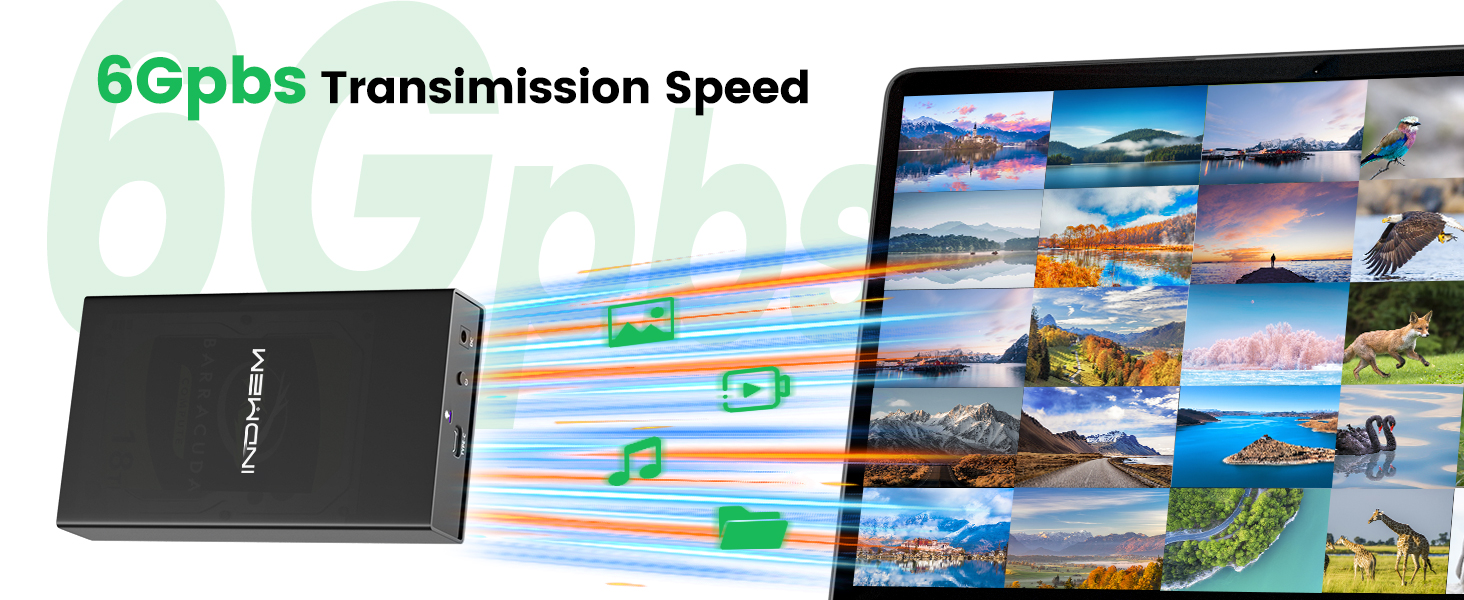
Instead of leaving it unused, you can turn it into external storage with a compatible SSD enclosure.
This can be useful when you:
Replace an older SSD
Have a spare M.2 drive
Need portable storage
An enclosure connects the SSD to your computer through an external interface.

A Simple Home Backup Setup
You can keep the whole system simple.
Step 1
Keep your active files on your computer or phone.
Step 2
Use an external SSD for files you access often.
Step 3
Use an HDD for larger collections and archives.
Step 4
Keep another copy of your most important files.
Step 5
Follow a regular backup schedule.
This setup can work for many households. You can also expand it as your data grows.
Build a Backup System That Fits You
A home backup system does not need to be complicated.
Start with the files that matter most.
Choose storage based on your usage.
Use an SSD when speed and portability matter. Choose an HDD when you need more space for large collections.
If you already have an M.2 SSD, an external enclosure can give it a new role as portable storage.
Most importantly, make backups part of your routine.
Explore INDMEM storage products to build a backup setup that fits your needs.
 Send Email
 JCcms
JCcms JCcms
JCcms